
A slow computer is one of the most frustrating things you can face. Whether you’re trying to work, play, or just browse the internet, waiting for your PC to respond can feel like forever.
The good news? You don’t need to buy a new machine right away. With the right optimizations and tools, you can bring your PC back to life.
In this article, we’ll walk you through practical steps to make your computer faster — and introduce you to some powerful software solutions, including Adlice Protect, UCheck, and Adlice Diag, as smart alternatives to well-known tools like Malwarebytes, CCleaner, and Process Explorer.
1. Clean Up Useless Files
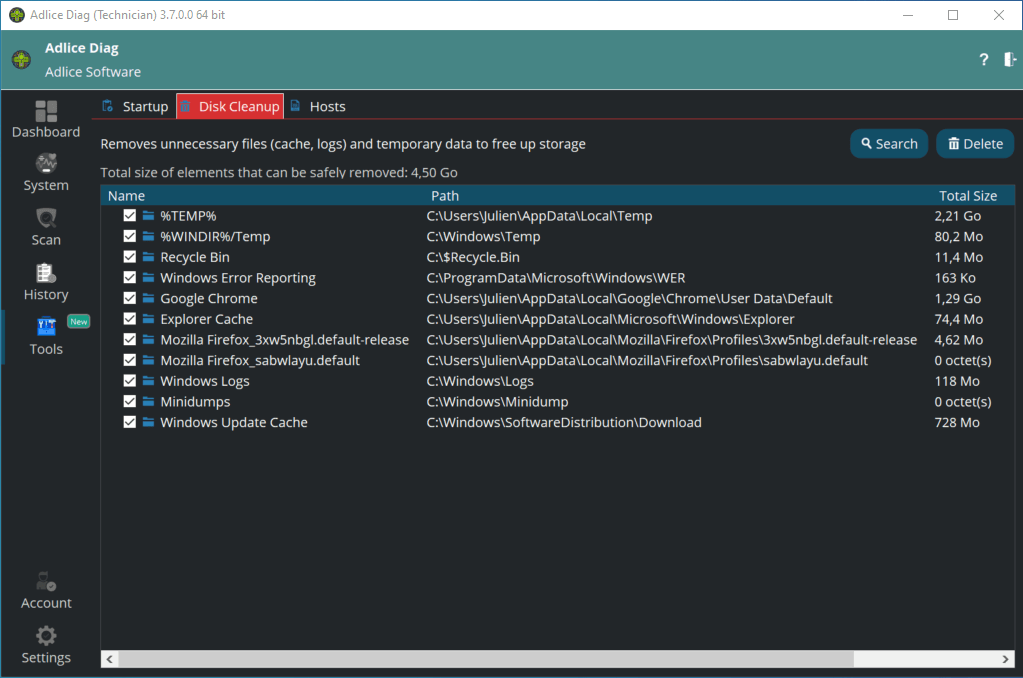
Temporary files, browser cache, and old system data accumulate over time, eating away at disk space and slowing performance. Many users rely on CCleaner to perform these cleanups. While it does the job, Adlice Diag goes further (👉 Think of it as a CCleaner + Process Explorer alternative, all in one):
- It removes junk files safely.
- It also provides diagnostic tools to analyze processes, drivers, and services.
🔹 Adlice Diag — CCleaner + Process Explorer Alternative 🔹
➡️ Install Diag, perform a system scan, and use the cleanup, startup management, and diagnostics tools to optimize your PC.
👉 Download Adlice Diag and fix slowness today.
🔹 CCleaner 🔹
➡️ Install CCleaner, click “Analyze” to find junk files, then hit “Run Cleaner” to free up disk space.
👉 Good for cleanup, but Diag gives you deeper control.
2. Update Your Software
Outdated software is a common cause of both slowdowns and security risks. Old versions can be buggy, heavy on resources, and vulnerable to exploits. Some people used SUMo (Software Update Monitor) in the past, but since it’s discontinued, you need an alternative.
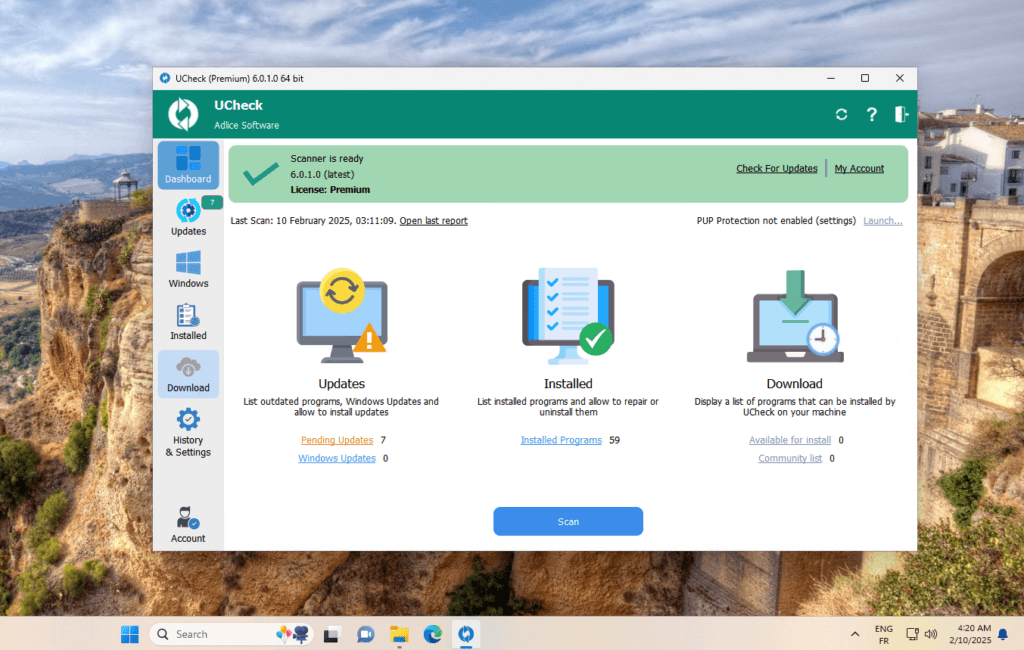
👉 Adlice UCheck automatically scans your system for outdated apps and updates them with a single click — saving you time and keeping your computer safe and efficient.
🔹 Adlice UCheck — SUMo Alternative 🔹
➡️ Install UCheck, click “Scan”, then update all outdated software in one go with the “Update All” button.
👉 Get UCheck here and update everything in 1 click.
3. Manage Startup Programs
Does your PC take ages to boot? Startup programs are often the culprit.
- Open Task Manager (
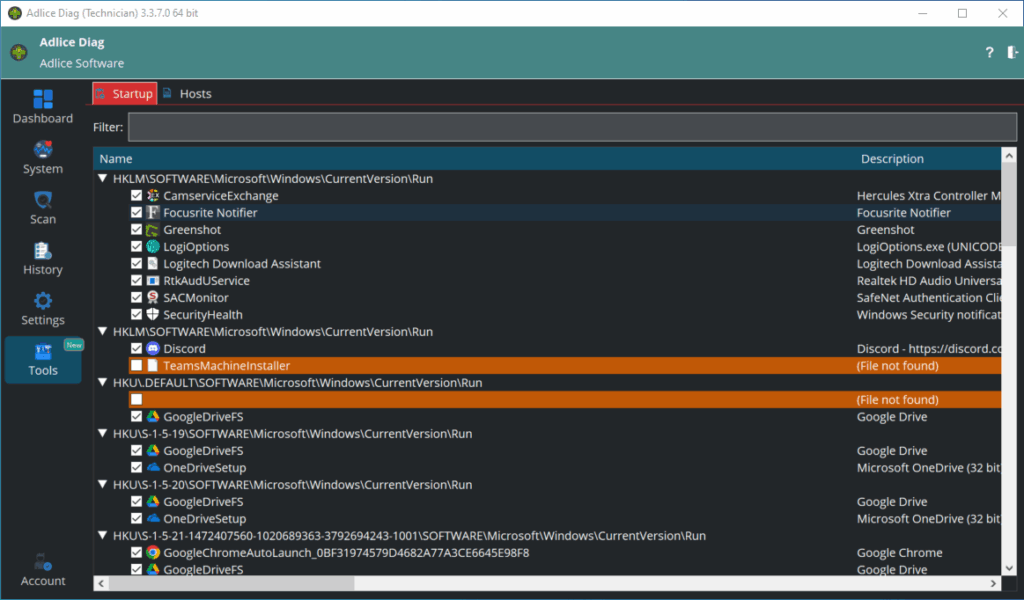
Ctrl+Shift+Esc) → Startup tab to disable what you don’t need. - Or use Adlice Diag to get more visibility into startup entries and disable unnecessary ones safely.
This makes your boot time much shorter, and your desktop ready faster.
🔹 Adlice Diag — Task Manager Alternative 🔹
➡️ Install Diag, open startup management, and uncheck or remove the entries you don’t need at startup.
👉 Download Adlice Diag and fix slowness today.
4. Check for Malware
Malware is a hidden performance killer. Viruses, trojans, and unwanted programs run in the background, using your CPU, RAM, and network without your consent.
Many people turn to Malwarebytes for protection — and it’s a solid choice. But if you’re looking for something lighter, more affordable, and able to detect advanced threats like rootkits, fileless malware, and PUPs, then Adlice Protect is a strong alternative.
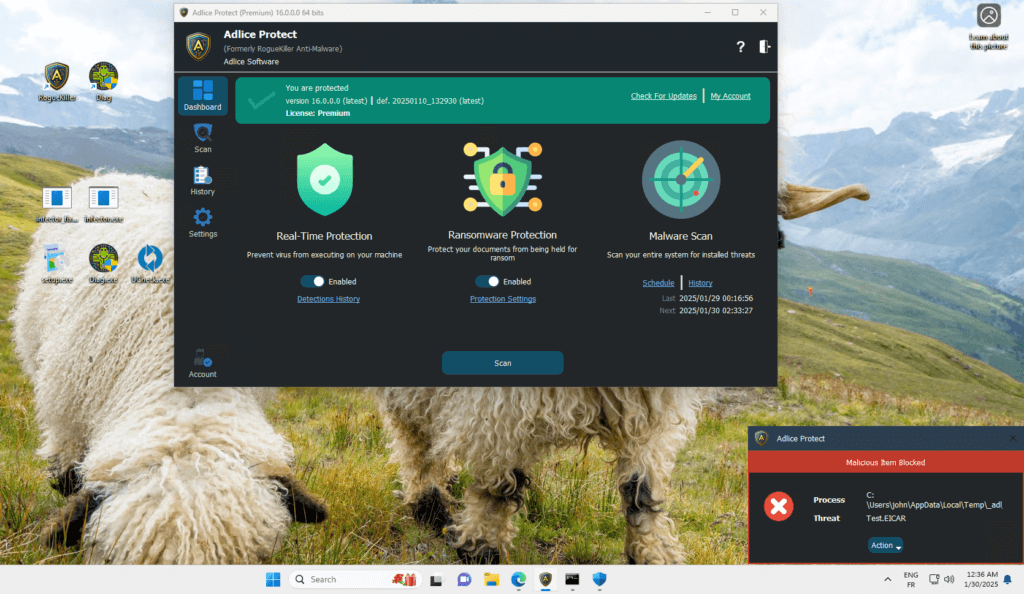
👉 Adlice Protect (previously RogueKiller Anti-Malware) is an excellent Malwarebytes alternative that offers next-gen protection and lightweight performance.
🔹 Adlice Protect (RogueKiller) — Malwarebytes Alternative 🔹
➡️ Download and install Adlice Protect, then run a full scan to detect and remove malware, rootkits, and advanced threats.
👉 Try Adlice Protect now and secure your PC.
🔹 Malwarebytes Anti-Malware 🔹
➡️ Download Malwarebytes, install it, and run a threat scan to remove common malware and potentially unwanted programs.
👉 Popular choice, but see why Adlice Protect goes further.
5. Diagnose Hidden Issues
If your computer is still slow after cleanup and updates, the problem might be harder to spot.
- A failing hard drive.
- A program consuming too many resources.
- A driver conflict.
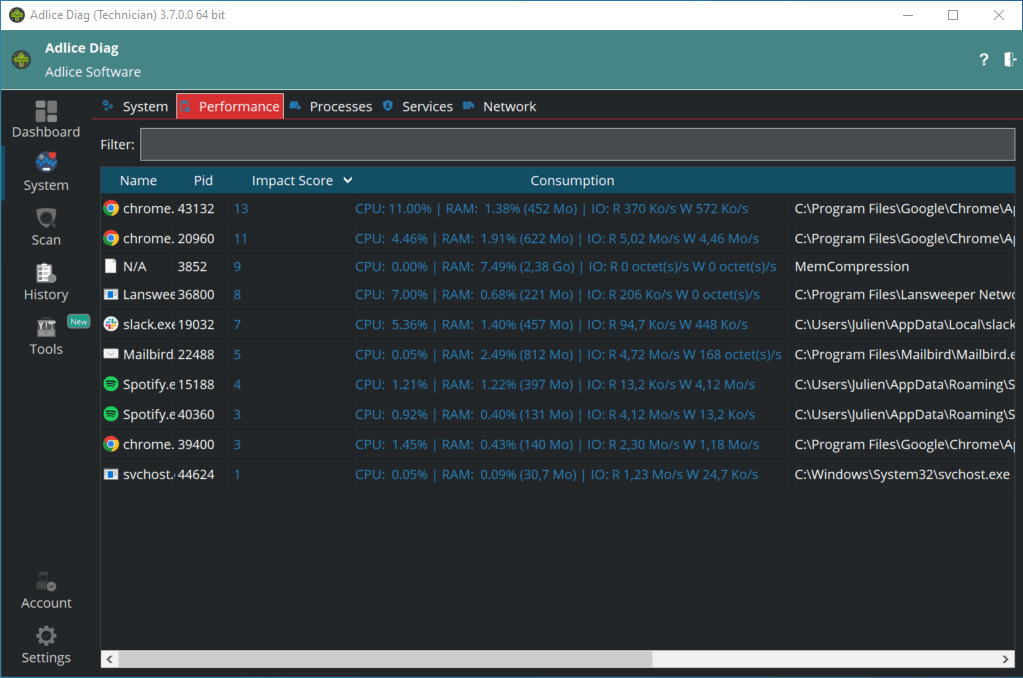
With Process Explorer, you can monitor active processes. But for an all-in-one solution, Adlice Diag not only shows you what’s happening under the hood but also helps fix common problems.
🔹 Adlice Diag — Process Explorer Alternative 🔹
➡️ Install Diag, open performance information and find processes eating all your resources.
👉 Download Adlice Diag and fix slowness today.
🔹 Process Explorer (Microsoft) 🔹
➡️ Download Process Explorer (portable app), open it, and use it to monitor running processes and spot resource-heavy programs.
👉 Great for experts, but Diag makes it easier for everyone.
6. Upgrade Hardware (Last Resort)
If nothing else works, it may be time to look at your hardware:
- Add more RAM for multitasking.
- Switch from HDD to SSD for instant speed improvements.
- Keep your machine cool and clean from dust.
Final Thoughts
You don’t need to replace your PC the moment it slows down. By cleaning up files, keeping software up to date, managing startup apps, and checking for malware, you can bring back speed and reliability.
And when it comes to tools:
- Adlice Protect (RogueKiller) → A powerful alternative to Malwarebytes for advanced malware protection.
- Adlice UCheck → The simplest way to keep all your software updated (and a solid replacement for SUMo).
- Adlice Diag → A CCleaner and Process Explorer alternative to clean, optimize, and diagnose performance issues.
👉 Give your computer a second life with the Adlice toolbox — fast, clean, and secure.